Friday, 5 April 2019

Using the Lookup function to create reports on multiple DataSets

With Dynamics 365 Online, the greatest thing I miss compared to OnPremise is the relative limitation on what you can do with reports, as FetchXml is not so powerful as SQL. One option is to use the Data Export Service to get the data into a SQL database, and get the SQL queries out, but there is still a lot that can be done with FetchXml and Reporting Services. This post shows how to combine data from multiple datasets using the Lookup function.

My first rule of thumb when working out if a given SQL query can be implemented as a FetchXml query is, 'can the SQL query be written so that there is just one SELECT statement ?' If so, you've got a good chance of being to rewrite as FetchXml, but if not, you won't be able to do this in FetchXml. This test is useful, as it immediately eliminates Union queries, sub-queries and table expressions, which you can't do with FetchXml.

So, in many cases you can't do get the result that you want with one query, but Reporting Services allows you to define multiple Datasets, and hence multiple queries, in one report, and the Lookup function allows to connect the data across the Datasets.

For this post, I'll use an example I came across recently when the requirement was to get a count of records created per user, broken down by entity type. The simplified output I was looking for was:

UserLeadsOpportunities
David Jennaway2010
My Friend158

This will need to get data from the systemuser, lead and the opportunity entities. It is possible to join these in one query, but not in a way that is useful, as you end up multiplying the opportunity and lead records.

Instead, we can create separate queries. Here I'm doing one for each entity, systemuser, lead and opportunity. The systemuser query will end up as the main source for the table, with lookups to the other queries to get the respective record counts. The 3 datasets and queries are:

dsUser:
<fetch > <entity name='systemuser' > <attribute name='systemuserid' /> <attribute name='fullname' /> </entity> </fetch>

dsLead:
<fetch aggregate='true'>
    <entity name='lead' >
       <attribute name='createdby' groupby='true' alias='createdby' />
       <attribute name='leadid' alias='lead_count' aggregate='countcolumn' />
    </entity>
</fetch>

dsOpportunity:
<fetch aggregate='true'>
    <entity name='opportunity' >
       <attribute name='createdby' groupby='true' alias='createdby' />
       <attribute name='opportunityid' alias='opportunity_count' aggregate='countcolumn' />
    </entity>
</fetch>

dsLead and dsOpportunity are both simple aggregate queries to get the respective record counts for each entity by user.

Then, to create the report, I add a table based on the dsUser dataset, with the Fullname in the first column. Then for the count of leads, I can use the following Lookup expression:

=Lookup(Fields!systemuserid.Value, Fields!createdbyValue.Value, Fields!lead_count.Value, "dsLead")

Taking each of the parameters in turn:
  • Fields!systemuserid.Value - this is the Guid for the systemuserid in the dsUser dataset. This value will be compared against...
  • Fields!createdbyValue.Value - this is the Guid of the createdby in the dsLead dataset. Note that I use createdbyValue to get the Guid, as for lookup attributes the createdby will be the name
  • Fields!lead_count.Value - this is the field in the dsLead dataset that I want to display
  • "dsLead" - this is the name of the dataset that the Lookup works on
We can then do the same for the expression for the opportunity count:

=Lookup(Fields!systemuserid.Value, Fields!createdbyValue.Value, Fields!opportunity_count.Value, "dsOpportunity")

And that's it to get the basic report. As a nicety, I can add a filter for the row visibility, so that it hides rows where there is no count across any of the datasets. The Lookup function returns Nothing if no record is found, so we can use the IsNothing function.

=IsNothing(Lookup(Fields!systemuserid.Value, Fields!createdbyValue.Value, Fields!opportunity_count.Value, "dsOpportunity")) AndAlso IsNothing(Lookup(Fields!systemuserid.Value, Fields!createdbyValue.Value, Fields!lead_count.Value, "dsLead"))

We can keep adding extra datasets to count other entities, using the same approach. I don't have the patience to work out if there's a practical limit to the number of datasets we can use in one report. 

A couple of points to note:
  • You can't use the Lookup function as a calculated field, which is slightly annoying, as I think it would be neater if this were possible. I expect this is due to how Reporting Services first processes the datasets, and will then render the results
  • When testing in Visual Studio, you get prompted for credentials (or to use cached credentials)for each dataset in turn. I don't think you can do anything about this. Interestingly, it looks like Visual Studio caches the credentials per dataset, and they can be differ even if they use the same datasource. I once managed to have different datasets querying different CRM organisations, even though they were using the same datasource
I'm intending to post the full report up on GitHub in the next few days, once I've got that working properly



Sunday, 24 March 2019

Solution Layers

In Dynamics 365 Online, you may have recently noticed a new button within an unmanaged solution, 'Solution Layers'. I first saw this appear around 17th Mar 2019, and it's a welcome tool to help understand more what happens with multiple solutions in a system.


I've been playing around with this a bit in the last week, and there are a few key concepts to understand from the beginning.
  • The button is currently only visible within an unmanaged solution or the default solution. This seems to be because managed solutions are not directly editable, though I think this is a bit of an oversight, because...
  • When you click the button for a solution component, it will display any managed solutions that contain that component, along with an 'Active' solution. From what I can tell so far, I'm treating the 'Active' solution to be the same as the default solution, but there may be subtle differences
  • It makes sense that this only displays managed solutions, as these are the only one solutions that a individually layered. In contrast, unmanaged solutions are all combined into the one unmanaged layer
So, it's a little confusing to start with, in that you can only access it from the unmanaged layer, but it is displaying information about the managed layers. But, leaving that aside, what does it tell us ? It provides information at 2 levels; first the list of layers, then the detail properties that were set within that layer.
The Layers
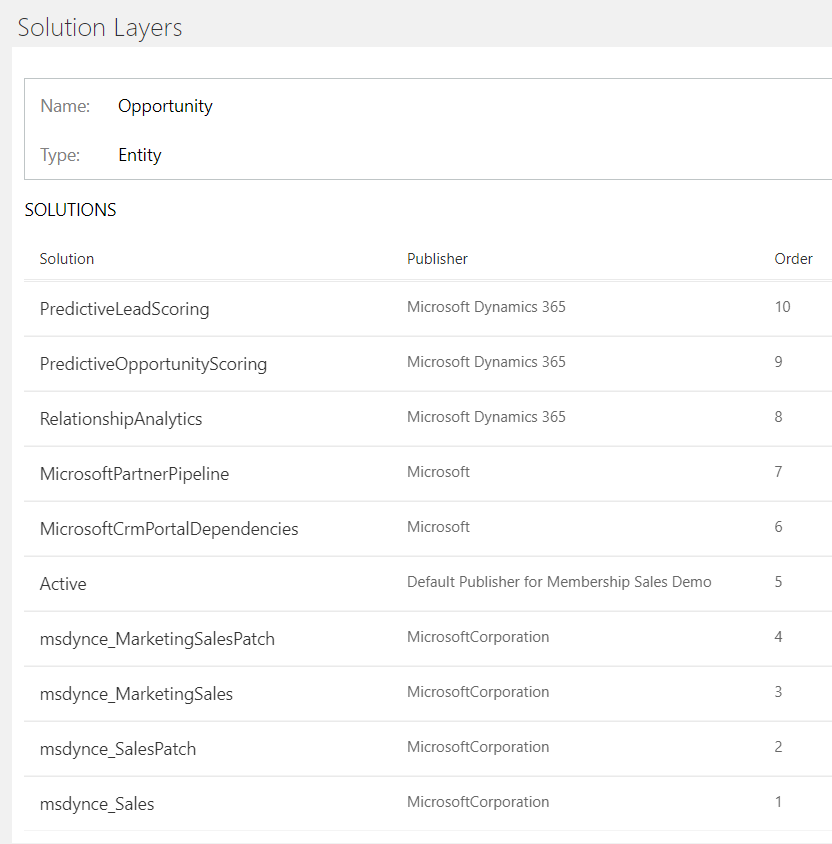
When you click on the 'Solution Layers' button, it will list all the managed solutions that contain this component, and the order in which they apply. 

Order no.1 is the first solution in which this component was imported into this organisation, with the remaining solutions in incremental order. The order listed is the order in which any changes will be applied; I think this would normally be the order in which the solutions are installed, though I suspect that Microsoft may change the order of some of their solutions, irrespective of the installation sequence. So, we start with order = 1, then any changes from each other solution are applied in turn, so that a change from a higher Ordered solution would override a change to the same property in a lower Ordered solution.

So, the information we get here is what solutions contain a component, and the order of the solutions. The interesting thing here is that some layers appear above the Active layer; from what I can tell so far, only solutions from Microsoft appear above the Active layer.
Properties within a Layer
If you click on a layer, it will then show the component properties within this layer. The 'Changed Properties' tab shows the component properties within this layer, and what value they were set to in this layer.

So, in this case we see that the msdynce_SalesPatch changes 3 properties of the Opportunity entity, for example the isauditenabled property. This indicates that the 'Include Entity Metadata' option had been selected when the entity had been added to the solution in the source system, which is one of the useful pieces of information that we can now get from the Solution Layer.

The 'All Properties' tab shows all the effective properties at this layer - i.e. taking all properties from layers at a lower order number, and applying the properties from this layer, but these can be overridden by layers with a higher number.


Note that, in the example above for the Opportunity entity, you several solutions were listed, but many don't have any changed properties. I think this is mostly because an entity will be included in a solution because one of its subcomponents (e.g. a view) has changed. To see this, you'd have to open Solution Layers on the subcomponent.

Different component types have different properties. Unfortunately the information given so far is, unsurprisingly, only the whole property. So, for example for a form, we just see the formxml and formjson, and this doesn't give us a representation of how forms are merged across solutions. However, I'm intending to dig further into whether the 'All Properties' tab can give an indication of how the formxml changes through the layers - if I find anything interesting then that could be another blog post

Thursday, 15 November 2018

Error importing solutions - "The 'options' attribute is invalid"

I hope that this post will be short-lived, and few people need it, but I had an issue today in Dynamics 365 v9.1 (version 1710 (9.1.0.638) for completeness), where a solution file failed to import. The error occurred on initial parsing on the solution file. The error was 'This solution package cannot be imported because it contains invalid XML' , and the technical details were:

Schema Validation Failed. 

Schema validation of the customizations.xml file within the compressed solution package file failed. To manually validate and edit the file, you can download the schema file here and use an XML editor that supports schema validation to get more details.

The 'options' attribute is invalid - The value '' is invalid according to its datatype 'String' - The Pattern constraint failed

This was followed by a snippet of a view XML definition, which gave a hint to the problem. It looks like Dynamics 365 has new attribute 'options' within the fetchXml schema. This is currently set to an empty string, but the solution importer fails to recognise it, hence the error. The affected part of the xml is:

            <fetch version="1.0" output-format="xml-platform" mapping="logical" distinct="true" options="" >

Fortunately, there's a relatively simple workaround to remove this attribute from a solutions file.
  1. Extract the solution xml
  2. Open customizations.xml
  3. Do a Find & Replace to remove all the following text: options=""
  4. Then recreate the .zip and it should import
This affects any solution that contains a view (I haven't tested to see if it also applies to charts or reports), and isn't due to a version mismatch between organisations, as I could replicate it by exporting and importing into the same organisation

Friday, 27 April 2018

Plugins in the sandbox, and why you don't get System.Security.Permissions.SecurityPermission

A relatively common error with plugins is "Request for the permission of type 'System.Security.Permissions.SecurityPermission, mscorlib, Version=4.0.0.0, Culture=neutral, PublicKeyToken=b77a5c561934e089' failed". This is the general message that you get when you have a plugin registered in the sandbox, and it is trying to do something that is not permitted. You may get variations on this error, depending on exactly what the code is trying to do, for example:
  • FileIOPermission - access the file system
  • InteropPermission - mostly likely using an external assembly (either directly, or having ILMerged into your plugin assembly)
  • System.Net.WebPermission - some for on network access, e.g. trying to access a network resource by IP address (the sandbox only allows by DNS name)
  • SqlClientPermission - accessing SQL Server
The list can go on, and on. Rather than trying to list everything you can't do, it's a lot simpler to list what you can, which is broadly:
  • Execute code that doesn't try to access any local resources (file system, event log, threading etc)
  • Call the CRM IOrganizationService using the context passed to the plugin
  • Access remote web resources as long as you:
    • Use http or https
    • Use a domain name, not an IP address
    • Do not use the .Net classes for authentication
All of which is pretty restrictive, but is understandable given the sandbox is designed to protect the CRM server. To me, the most annoying one is the last, which makes it pretty much impossible to call other Microsoft web services directly, such as SharePoint or Reporting Services.

So, what to do about it. If you have CRM OnPremise, the simple and only solution is to register the assembly outside the sandbox, so that it can run in FullTrust - i.e. do whatever it wants (though still subject to the permissions of the CRM service account or asynchronous service account that it runs under).

And if you've got CRM Online, then the normal solution is to offload the processing to an environment that you have more control over. The most common option is to offload the processing to Azure, using the Azure Service Bus or Azure Event Hub . The alternative, new to CRM 9, is to send the data to a WebHook, which can be hosted wherever you like. 

Saturday, 31 March 2018

What's in a name - CRM, Dynamics 365, CDS

Now that I've restarted posting on this blog, I'm struggling to name the technologies consistently. It used to just be CRM (or Microsoft CRM, or Dynamics CRM, or Microsoft Dynamics CRM), but now it's Dynamics 365, or Dynamics 365 for Customer Engagement. And from the platform perspective, it's Common Data Services (CDS).
To an extent, we're necessarily at the whim of Microsoft branding, which can change, but I feel we're close to an overall set of terms that can be consistently applied. As I see it, there are 3 distinct things that can be named:

The overall suite of technologies
This has been Dynamics, Dynamics 365, or Microsoft Business Applications. Of these, Dynamics 365 is definitely the leader, though there has been recent use of Microsoft Business Applications, so we may find this to become more popular. To me, the main difference is that Microsoft Business Applications can include technologies such as PowerApps and Flow, which started out under the Office 365 brand


The applications that Microsoft deliver
We started with the separate Dynamics products (CRM, AX, GP, NAV etc). Several (but not all) were then included within Dynamics 365, along with some new application (e.g. Talent). From the original CRM application and implementations, we can refer to each Application, which are Sales, Customer Service, Marketing, Field Service and Project Service Automation. Here the roadmap is a useful reference. These applications can be usefully referred to individually, but we need to be able to refer to them collectively, and distinguish them from the other Dynamics 365 applications (Finance and Operations, Retail, Talent, Business Central) that are not based on the CRM technology. Rather than using the term 'CRM', Microsoft are pushing the term 'Microsoft Dynamics 365 Customer Engagement'. I do mostly understand the Microsoft approach, but it is a lot longer than 'CRM', so I'm going to struggle to move off CRM. For more on this, see Jukka's post

The platform - i.e. what underpins the applications
'Platform' itself can mean different things to different people, which we won't resolve here, but I'm taking about the technologies that started in CRM, and not just the Azure platform. Here we started with CRM, then the term xRM was introduced, but now (as of March 2018), I think that we should now be referring to CDS (Common Data Services). Now that Common Data Services for Applications and CRM are the same platform is a huge step. And from now on , I think the platform that started out as CRM is better termed CDS. There are a few details to sort out still; there are 'Common Data Services for Applications' and 'Common Data Services for Analytics', and I reckon only the former truly relates to the original CRM platform, but I'm not certain on that yet

Overall, I thing the picture will soon be reasonably clear, with a few caveats. For the foreseeable future, I expect I'll still preface most presentations by saying that I'll use the terms 'CRM' and 'Dynamics 365' interchangeably, unless there is a reason to differentiate between them, in which case I'll try and explain the difference. Similarly, I'll probably be using 'CRM' and 'xRM' and 'CDS' interchangeably for a while

Common Data Services Architecture in CDS 2.0

I struggled to think of a good title for this post, and I hope to change it to something more inspirational, as this is a very significant topic.
Microsoft have made several recent announcements in March 2018, but for me the most significant is the PowerApps Spring Update. This may seem strange for me, a CRM MVP, to say, given how much there was on CRM in the Business Applications Spring ’18 Release Notes, but I think it makes sense once you realise that the PowerApps Update describes the new and future Common Data Services (CDS) architecture, and that in this architecture, much of CDS is the CRM platform (aka xRM).
Rather than CDS being a separate layer or component that then communicates with the CRM platform, CDS and CRM are a shared platform.
Strictly, it's not quite as simple as the last sentence makes out, especially as CDS now splits into Common Data Service for Applications and Common Data Service for Analytics (I'm hoping we'll soon get good acronyms to distinguish these), but for now it's worth emphasising that, if using Common Data Service for Applications, you are directly using the same platform components that CRM uses. This has several major implications (all of which are good to my mind):

  1. CDS for Apps can fully use the CRM platform features, such as workflow, business process flows, calculated fields. This immediately makes CDS a hugely powerful platform, but also means there are no decisions to take on which platform to use, or differences to take into account, because they are the same platform
  2. There are no extra integration steps. Commissioning a CDS environment will give you a CRM organisation, and equally, commissioning a CRM organisation will give you a CDS environment. This is not a duplication of data or platforms, because again, they are the same platform
There's a lot to play with, and explore, but for now this seems a major step forward for the platform, and I feel I'll be writing a lot more about CDS (though I'm still not sure when I'll stop referring to CRM when describing the platform).
The one area that still needs to be confirmed, and which could have a major impact on adoption, is licensing, but I hope we'll get clarity on this soon.

Thursday, 29 March 2018

Concurrent or Consistent - or both

A lesser-known feature that CRM 2016 brought to us is support for optimistic concurrency in the web service API. This may not be as exciting as some features, but as it's something I find exciting, I thought I write about it.

Am I an optimist
So, what is it about ?  Concurrency control is used to ensure data remains consistent when multiple users are making concurrent modifications to the same data. The two main models are pessimistic concurrency and optimistic concurrency. The difference between the 2 can be illustrated by considering two users (Albert and Brenda), who are trying to update the same field (X) on the same record (Y). In each case the update is actually 2 steps (reading the existing record, then updating it), and Albert and Brenda's try and do the steps in the following time sequence:
  1. Albert reads X from record Y (let's say the value is 30)
  2. Brenda reads record Y (while it's still 30)
  3. Albert updates record Y (Albert wants to add 20, so he updates X to 50)
  4. Brenda updates record Y (she wants to subtract 10, so subtracts 10 from the value (30) she read in step 2, so she updates X to 20) 
If we had no concurrency control, we would have started with 30, added 20, subtracted 10, and found that apparently 30 + 20 - 10 = 20. Arguably we have a concurrency model, which is called 'chaos', because we end up with inconsistent data.
To avoid chaos, we can use pessimistic concurrency control. With this, the sequence is:
    1. Albert reads X from record Y (when the value is 30), and the system locks record Y
    2. Brenda tries to read record Y, but Albert's lock blocks her read, so she sits waiting for a response
    3. Albert adds 20 to his value (30), and updates X to 50, then the system releases the lock on Y
    4. Brenda now gets her response, which is that X is now 50
    5. Brenda subtracts 10 from her value (50), and updates X to 40
    So, 30 + 20 - 10 = 40, and we have consistent data. So we're all happy now, and I can finish this post.
    Or maybe not. Brenda had to wait between steps 2 and 4. Maybe Albert is quick, but then again, maybe he isn't, or he's been distracted, or gone for a coffee. For this to be robust, locks would have to placed whenever a record is read, and only released when the system knows the Albert is not still about to come back from his extended coffee break. In low latency client-server systems this can be managed reasonably well (and we can use different locks to distinguish between an 'I'm just reading', and 'I'm reading and intending to update'), but with a web front-end like CRM, we have no such control. We've gained consistency, but at a huge cost of concurrency. This is pessimistic concurrency.
    Now for optimistic concurrency, which goes like this:
    1. Albert reads X (30) from record Y (when the value is 30), and also reads a system-generated record version number (let's say it's version 1)
    2. Brenda reads record Y (while it's still 30), and the system-generated record version number (which is still version 1, as the record's not changed yet)
    3. Albert adds 20 to his value (30), and updates X to 50. The update is only permitted because Albert's version number (1) matches the current version number (1). The system updates the version number to 2
    4. Brenda subtracts 10 from her value (30), and tries to update X to 20.This update is not permitted as Brenda's version number (2) does not match the current version number (1). So, Brenda will get an error
    5. Brenda now tries again, reading now read the current value (50) and version number (2), then subtracting 10, and the update is allowed
    The concurrency gain is that Albert, Brenda and the rest of the alphabetical users can read and update with no blocks, except when there is a conflict. The drawback is that the system will need to do something (even if it is just give an error message), when there is a conflict.
    .
    What are the options
    Given this post is about a feature that was introduced in CRM 2016, what do you think happened before (and now, because you have to explicitly use optimistic concurrency). If it's not optimistic concurrency, then it's either pessimistic or chaos. And it's not pessimistic locking, as if Microsoft defaulted to this, then CRM would grind to a locked halt if users often tried to concurrently access records.

    Maybe I want to be a pessimist
    As chaos sounds bad, maybe you don't believe that CRM would grind to a locked halt, or you're happy that users don't need concurrent access, or you've been asked to prevent concurrent access to records (see note 1). So, can we apply pessimistic locking ? The short answer is 'no', and most longer answers also end up 'no'. Microsoft give us almost no control over locking (see note 2 for completeness) within CRM, and definitely no means to hold locks beyond any one call. If you want to prolong the answer as much as you can, you might conceive a mechanism whereby users only get user-level update access to records, and have to assign the record to themselves before they can update it, but this doesn't actually work either, as a user may still be making the update based on a value they read earlier. And you can't make it user-level read access, and the user then wouldn't be able to see a record owned by someone else to be able to assign it to themselves.

    OK, I'll be an optimist
    So, how do we use optimistic concurrency ? First of all, not every entity is enabled for optimistic concurrency, but most are. This is controlled by the IsOptimisticConcurrencyEnabled property of the entity, and by default it is true for all out-of-box entities enabled for offline sync, and for all custom entities. You can check this property by querying the entity metadata (but not in the EntityMetadata.xlsx document in the SDK, despite the SDK documentation)

    Then, to use optimistic concurrency you need to do at least 2 things, and preferrably 3:
    1. In the Entity instance that you are sending to the Update, ensure the RowVersion property is set to the RowVersion that you received when you read this record 
    2. In the UpdateRequest, set the ConcurrencyBehavior to IfRowVersionMatches
    3. Handle any exceptions. If there is a row version conflict (as per my optimistic scenario above), then you get a ConcurrencyVersionMismatch exception. 
    For a code example, see the SDK
    I've described this for an Update request, and you can also use it for a Delete request, and I hope you'll understand why it doesn't apply to a Create request.

    One word of warning; I believe that some entities fail when using optimistic concurrency - this seems to be the entities that are metadata related (e.g. webresource or savedquery). I suspect this is because the metadata-related internals work on different internal (at the SQL level) concurrency from most other entities.

    How much does it matter
    I've left this till last, otherwise you may not have read the rest of the post, as it often doesn't matter. Consistency issues are most relevant if there's a long time between a read and the corresponding update. The classic example is offline usage (hence why it's enabled for out-of-box entities enabled for offline sync). I also see it as relevant for some bulk operations; for example we do a lot of bulk operations with SSIS, and for performance reasons, there's often a noticeable time gap between reads and writes in an SSIS data flow.

    Notes

    1. During CRM implementatons, if asked 'Can we do X in CRM ?', I very rarely just so no, and I'm more likely to say no for reasons other than purely technical ones. However, when I've been asked to prevent concurrent access to records, then this is a rare case when I go for the short answer of 'no'
    2. We can get a little bit of control over locking within a synchronous plugin, as this runs within the CRM transaction. This is the basis of the most robust CRM-based autonumber implementations. However, the lock can't be held outside of the platform operation
    3. My examples have concentrated on updating a single field, but any talk of locking or row version is at a record level. If Albert and Brenda were changing different fields, then we may not have a consistency issue to address. However, for practical reasons, any system applies locks and row versioning at a record, and not field level. Also, even if the updates are to different fields, it is possible that the change they make is dependent on other fields that may have changed, so for optimistic concurrency we do get a ConcurrencyVersionMismatch if any fields had changed


    Friday, 27 June 2014

    Plugin pre-stages - some subtleties

    The CRM SDK describes the main differences in plug stages here. However, there are some additional differences between the pre-validation and pre-operation stages that are not documented.

    Compound Operations
    The CRM SDK includes some compound operations that affect more than one entity. One example is the QualifyLead message, which can update (or create) the lead, contact, account and opportunity entities. With compound operations, the pre-validation event fires only once, on the original message (QualifyLead in this case) whereas the pre-operation event fires for each operation.
    You do not get the pre-validation event for the individual operations. A key consequence of this is that if, for example, you register a plugin on pre-validation of Create for the account entity, it will not fire if an account is created via QualifyLead. However, a plugin on the pre-operation of Create for the account entity will fire if an account is created via QualifyLead.

    Activities and Activity Parties
    I've posted about this before, however it's worth including it in this context. When you create an activity, there will be an operation for the main activity entity, and separate operations to create activityparty records for any attribute of type partylist (e.g. the sender or recipient). The data for the activityparty appears to be evaluated within the overall validation - i.e. before the pre-operation stage. The key consequence is that any changes made to the Target InputParameter that would affect an activityparty will only be picked up if made in the pre-validation stage for the activity entity.

    Monday, 7 April 2014

    Controlling Duplicate Detection

    The CRM SDK messages CreateRequest and UpdateRequest support a configuration parameter "SuppressDuplicateDetection" that provides control over whether duplicate detection rules will be applied - see http://msdn.microsoft.com/en-us/library/hh210213(v=crm.6).aspx. However, this parameter is not available through over programmatic means (such as the REST endpoint) to create or update records.

    To workaround this, I created a plugin that sets the "SuppressDuplicateDetection" parameter based on the value of a boolean attribute that can included in the Entity instance that is created or updated.

    I've posted the source code to the MSDN Code Gallery here

    I created this because I had a need to apply duplicate detection rules to entities created via the REST endpoint in CRM 2011.

    It may be that this plugin could also be used as a way to revert the CRM 2013 behaviour back to that of CRM 2011, to allow duplicate detection rules to fire on CRM forms. However, I've yet to test this fully; if anybody wants to test it, feel free to do so and make comments on this post. Otherwise, I'll probably update this post if I find anything useful with the CRM 2013 interface.

    Friday, 13 December 2013

    Crm 2013 – Script errors after upgrading an ex-Crm 4.0 organisation


    After a recent upgrade to Crm 2013 of an organisation that had been a Crm 4.0 organisation, there were client script errors when navigating to the Case or Queue entities. The underlying cause was some SiteMap entries that referenced Crm 4.0 urls; these were being redirected to new urls, but seemed to be missing some elements on the QueryString.
    The SiteMap entries with issues were:

    <SubArea Id="nav_cases" Entity="incident" DescriptionResourceId="Cases_SubArea_Description" Url="/CS/home_cases.aspx" />
    <SubArea Id="nav_queues" Entity="queue" Url="/workplace/home_workplace.aspx" DescriptionResourceId="Queues_SubArea_Description">
      <Privilege Entity="activitypointer" Privilege="Read" />
    </SubArea>

    The fix is to replace them with the following (which come from a default SiteMap in a new Crm 2013 organisation, though I’ve stripped out the GetStarted attributes):

    <SubArea Id="nav_cases" DescriptionResourceId="Cases_SubArea_Description" Entity="incident" />
    <SubArea Id="nav_queues" ResourceId="Homepage_Queues" DescriptionResourceId="Queues_SubArea_Description" Icon="/_imgs/ico_18_2020.gif" Url="/_root/homepage.aspx?etc=2029" >
     <Privilege Entity="queue" Privilege="Read" />
    </SubArea>

    These are the only entries I’ve found so far with problems. I think the entry for Queues is a one-off, but the entry for cases is notable in that the original (Crm 4.0) SiteMap entry included a Url attribute, whereas entries for most other entities did not include the Url attribute. So, it’s possible that other entries that include both the Entity and Url attribute could have the same issue.
    Although annoying at the time, I don’t see this as a major issue, as reviewing the SiteMap will be one of the standard tasks we do for any upgrades to Crm 2013. This is due to change in navigation layout, which means the overall navigation structure deserves a rethink to make best use of the new layout. When doing this, we find it is best to start with a new clean SiteMap and edit this to a customer-specific structure for Crm 2013, rather than trying to edit an existing structure. It’s also worth noting that a few of the default permissions have changed (spot the difference above for the privilege to see the Queues SubArea), and it’s worth paying attention to these at upgrade time for future consistency.


    Monday, 9 December 2013

    Crm 2013 – Upgrading from an ex-Crm 1.2 organisation


    This post should only affect a small fraction of Crm 2013 users, but if you do have a CRM organisation that was first created in Crm 1.2, and upgraded through the versions to Crm 2013, you may get an “unexpected error” message when opening account contact or lead records that had been created in Crm 1.2 (I told you this wouldn’t affect many people, but we do still have, and interact with, customers from Crm 1.2 days).
    The cause of this is the ‘merged’ attribute. Record merging (for accounts, contacts and leads) was introduced in Crm 3.0, and a ‘merged’ attribute was created to track if a record had been merged. For all records created in Crm 3.0 and higher, this attribute was set to false, but for records created in Crm 1.2, the attribute was null.

    This causes a problem in the RTM build of Crm 2013. If you enable tracing, you will see an error like the following:
    Crm Exception: Message: An unexpected error occurred., ErrorCode: -2147220970, InnerException: System.NullReferenceException: Object reference not set to an instance of an object.
       at Microsoft.Crm.BusinessEntities.RecordDisabledMergedNotificationGenerator.BusinessLogic(IBusinessEntity entity, IOrganizationContext context, NotificationAdder notificationAdder)

    So, that’s the problem. There are three ways to fix it:
    • If you’ve already upgraded, then the quick, but unsupported, fix is via direct SQL statements that set the merged attribute to false (see below)
    • If you have not yet upgraded, you can merge each affected record in turn with a dummy record, which will set the merged attribute.
    • You can automate the merge process programmatically by submitting a merge request for each record, and passing appropriate parameters. I’m not sure if this will work after the upgrade, or only before, as I’ve not tried it
    Unfortunately (but unsurprisingly), the merged attribute is not ValidForUpdate, so you can’t use a simple, supported update request to set the attribute

    The SQL statements for an unsupported fix:

    update contact set merged = 0 where merged is null
    update account set merged = 0 where merged is null
    update lead set merged = 0 where merged is null

    Friday, 6 December 2013

    Crm 2013 – No more ExtensionBase tables


    So, Dynamics Crm 2013 is here, and there’s lots to say about the new UI, and the new features. But, many others are talking about these, so I thought I’d start with what may seem to be an obscure technical change, but it’s one that I welcome, and which is a significant contribution to the stability and performance of Crm 2013.

    With Crm 3.0, Microsoft changed the underlying table structure so that any customisable entity was split across 2 tables; a base table that contained all system attributes, and an extensionbase table for custom attributes. For example, there was an accountbase and an accountextensionbase table. Each table used the entity’s key as the primary key, and the extensionbase table also had a foreign key constraint from the primary key field to the primary key in the base table. Each entity has a SQL view that joined the data from these table to make it appear as one table to the platform. As I understand it, the main reason for this design was to allow for more custom attributes, as SQL Server had a row-size limit of 8060 bytes, and some of the system attributes were already using ~6000 bytes.

    The same table design was retained in Crm 4.0 and Crm 2011. However, Crm 2011 introduced a significant change to the plugin execution pipeline, which allowed custom plugins to execute within the original SQL transaction. This was a very welcome change that provided greater extensibility. However it did mean that the duration of SQL transactions could be extended, which means that SQL locks may be held for longer, which means potentially more locking contention between transactions. In very occasional circumstances, a combination of certain plugin patterns, the design of the base and extensionbase tables, and heavy concurrent use, could give rise to deadlocks (see below for an example).

    Given this, I’m very glad that the product team retained the facility to have plugins execute within the original transaction (then again, it would be hard to remove this facility from us). It wouldn’t be realistic to ask customers to reduce concurrent usage of CRM, so the only way to reduce the potential deadlock issue was to address the design of the base and extensionbase tables. From my investigations (sorry, but I actually quite like investigating SQL locking behaviour), a substantial improvement could have been made by retaining the table design, but modifying the SQL view, but a greater improvement comes from combining the tables into one. An added advantage of this change is that the performance of most data update operations are also improved.
    Deadlock example

    Here are two SQL statements generated by CRM:
    select
    'new_entity0'.new_entityId as 'new_entityid'
    , 'new_entity0'.OwningBusinessUnit as 'owningbusinessunit'
    , 'new_entity0'.OwnerId as 'ownerid'
    , 'new_entity0'.OwnerIdType as 'owneridtype'
    from new_entity as 'new_entity0'
    where ('new_entity0'.new_entityId = @new_entityId0)  

    And

    update [new_entityExtensionBase]
    set [new_attribute]=@attribute0
    where ([new_entityId] = @new_entityId1)
     
    These were deadlocked, with the SELECT statement being the deadlock victim. The locks that caused the deadlock were:
    • The SELECT statement had a shared lock on the new_entityExtensionBase table, and was requesting a shared lock on new_entityBase table
    • The UPDATE statement had an update lock on the new_entityBase table, and was requesting an update lock on new_entityExtensionBase table
    The likely reason for this locking behaviour was that:
    • Although the SELECT statement was requesting fields from the new_entityBase table, it had obtained a lock on the new_entityExtensionBase table to perform the join in the new_entity view
    • The UPDATE statement that updates a custom attribute (new_attribute) on the new_entity entity would have been the second statement of 2 in the transaction. The first statement would modify system fields (e.g. modifiedon) in the new_entityBase table, and hence place an exclusive lock on a row in the new_entityBase table, and the second statement is the one above, which is attempting to update the new_entityExtensionBase table
    Both operations needed to access both tables, and if you’re very unlucky, then the two operations, working on the same record, may overlap in time, and cause a deadlock.

    The new design in Crm 2013 solves this in three ways:
    1. With just the one entity table, the SELECT statement only needs one lock, and does not need to obtain one lock, then request another
    2. Only one UPDATE statement is required in the transaction, so locks are only required on the one table and they can be requested together, as they would be part of just one statement
    3. Both operations will complete more quickly, reducing the time for which the locks are held
    Of these 3 improvements, either no. 1 or 2 would have been sufficient to prevent deadlocks in this example, but it is gratifying that both improvements have been made. The third improvement would not necessarily prevent deadlocks, but will reduce their probability by reducing overall lock contention, and will also provide a performance improvement.

    Wednesday, 12 June 2013

    SQL Setup error "Registry properties are not valid under this context"

    When using new versions of software (in this case SQL Server 2012 service pack 1), there's always the chance of a new, random error. In this case it was "Registry properties are not valid under this context" when attempting to add a component (the Full-text service) to an existing installation.

    It seems like the issue comes down to the sequence of installing updates, both to the existing installation, and to the setup program. The specific scenario was:
    • The initial install of SQL Server had been done directly from the slipstreamed SQL Server 2012 service pack 1 setup. At this time, the server was not connected to the internet, so no additional updates were applied either to the installed components, or the setup program
    • When attempting to add the Full-text service, the server was connected to the internet, and had the option set to install updates to other products via Microsoft Update. When I started the setup (which used exactly the same initial source), the setup downloaded an updated setup, and also found a 145 MB update rollup that would also be installed
    • Part way through the setup steps, setup failed with the message "Registry properties are not valid under this context"
    The problem seemed to be that the setup program was using a more recent update than the currently installed components. Even though the setup program had identified updates to apply to the current components, it had not yet applied them before crashing out with the error.

    The solution was to go to Microsoft Update and install the SQL Update Rollup, then go back and run SQL Setup to add the extra component. Interestingly, SQL Setup still reported that it had found this 145 MB rollup to apply, even though it was already installed

    Monday, 29 April 2013

    Understanding error codes

    Error messages frequently include error codes; sometimes they also include useful text that describes the code, but sometimes they don’t, leaving you to discover what the code means. Here's how I decipher CRM and Windows error codes.

    CRM Error Codes
    The CRM error codes are (reasonably) well documented here in the CRM SDK. If you’re searching for the code, one thing to watch for is that the code may be referenced with a prefix of 0x (which indicates the code is represented in hex) – e.g. 0x80040201. If you search for the code, it’s best to remove the 0x prefix.

    It is also possible that you may receive the code as an integer (e.g. -2147220991). If you do, convert if to hex (I use the Calculator application), then search for it.
    Windows Error Codes
    There is more variation in how you may identify a Windows error code, but they are ultimately numerical values starting from 1, and (as far as I’m aware) are consistent across versions of Windows. Newer versions of Windows may include error codes that don’t exist in previous versions, but the same error code should have the same meaning across versions.

    There is a quick and easy way to get the message associated with a given code – go to a command prompt and enter NET HELPMSG - e.g.
    NET HELPMSG 5

    And you’ll get the result
    “Access is denied”

    This is the message for error code 5 (which is probably the most common code I encounter, though I don’t keep stats on this…)
    So, that’s fine if you’ve been given the error code as an integer value (I don’t know what the highest valued error code is – it’s probably either in the high thousands, or maybe 5 digits), but it’s not always that easy.

    The code may be in hex(aka hexadecimal). If it contains one of the characters a-f, then it’s in Hex and you’ll need to convert it to decimal. I use the Calculator application to do this. Also, the value may be provided in hex but comes out just as digits. So, if I have an error code, and the message seems entirely irrelevant, I normally convert the code as if it were in hex to decimal, then pass it to NET HELPMSG.
    The code may be in hex, but supplied as a 32-bit (or maybe 64-bit) integer with some higher bit flags set, for example:
    80070005
    0x80000002
    &H80040035
    The prefixes 0x and &H are some ways to indicate the value is in hex, and these prefixes can be discarded. You can also discard all but the last 4 characters (in these examples 0005, 0002 and 0035) and convert them from hex to decimal (in these examples giving 5, 2 and 53 respectively).


    Finally, you may get a 32-bit integer with some higher bit flags set, receive the value in decimal, rather than hex. These almost always have the highest bit of a 32-bit value set, which means that in decimal they come out around 2 147 000 000 (or more commonly as a negative number, as they are typically signed integers). So, if I got an error code of -2147024891, I would:
    1. Convert it to hex, giving 80070005
    2. Discard all but the last 4 characters, giving 0005
    3. Convert it back to decimal, giving 5
    4. Run NET HELPMSG 5, and find that I’ve got another ‘Access is denied’ message

    Friday, 26 April 2013

    The given key was not present in the dictionary - what it means, and how to avoid it

    A common error posted on the CRM Development forum is ‘the given key was not present in the dictionary’. This is a relatively easy error to diagnose and fix, provided you know what it means. It will also help to identify the line in the code at which the error occurs, which is most easily determined by debugging.

    The error refers to a ‘dictionary’, and a ‘key’. The ‘dictionary’ is a type of collection object (i.e. it can contain many values), and the ‘key’ is the means by which you specify which value you want. The following two lines of code both show an example:
    Entity e = context.InputParameters["Target"];
    string name = e.Attributes["name"];  // Note that this is equivalent to: string name = e["name"];

    In the first line, InputParameters is the dictionary, and "Target" is the key. In the second line, Attributes is the dictionary, and "name" is the key. The error ‘The given key is not present in the dictionary’ simply means that the dictionary does not have a value that corresponds to the key. So, this error would occur in the first line if InputParameters does not contain a key called "Target", or in the second line if there were no "name" in Attributes.

    The way to avoid these errors is simple; test if the key exists before trying to use it. Different collection classes can provide different ways to perform this test, but the collection classes in the CRM SDK assemblies all inherit from an abstract DataCollection class that exposes a Contains method, so you can use a consistent approach across these collection classes.
    if (context.InputParameters.Contains("Target"))
    {
     Entity e = context.InputParameters["Target"];
     if (e.Attributes.Contains("name"))
     {
      string name = e.Attributes["name"];
     }
    }


    There are a few common reasons of the use of CRM collection classes where a key might not be present when you expect it:
    • Within a plugin, the values in context.InputParameters and context.OutputParameters depend on the message and the stage that you register the plugin on. For example, "Target" is present in InputParameters for the Create and Update messages, but not the SetState message. Also, OutputParameters only exist in a Post stage, and not in a Pre stage. There is no single source of documentation that provides the complete set of InputParameters and OutputParameters by message and stage, though this post provides a list of the most common ones for CRM 4, and most of these still apply in CRM 2011
    • The Attributes collection of an Entity will only contain values for attributes that have a value. You may get the Entity from a Retrieve or RetrieveMultiple having specified a ColumnSet with the attribute you want, but this attribute will not be present in the Attributes collection if there were no data in that attribute for that record
    • Within a plugin, the Attributes collection of an Entity that you obtain from the "Target" InputParameter will only contain attributes that were modified in the corresponding Create or Update method. Using the example above, if this were in a plugin registered on the Update message, the "name" attribute would only be present if the "name" attribute was changed as part of the Update; the "Target" InputParameter will not contain all the attributes for the entity

    Wednesday, 14 November 2012

    Reporting Services log files

    This should be a very brief post. I find myself replying to many posts in the CRM forums about reporting problems, and most commonly direct people to the Reporting Services log file(s), which provides a lot of potentially useful information. The main information you can get is:
    • More detail than CRM will provide on errors running a given report
    • Whether or not a report is being run
    In general, I find the information reported in the log files to be self-explanatory, but if I find examples of messages than could benefit from further explanation, then I'll post them here.

    The log files are in the Reporting Services\LogFiles folder within the Reporting Services directory. On a default instance on SQL 2008 R2, this would be:

    %Program Files%\Microsoft SQL Server\MSRS10_50.MSSQLSERVER\Reporting Services\LogFiles

    Wednesday, 11 July 2012

    Using WSDL Proxies with CrmOnline - Recent changes

    A recent change applied to Crm Online in EMEA affects the information needed to connect to Crm Online if you don't / can't use the .Net 4 CRM SDK assemblies. This article gave information that was valid at the time, but the AppliesTo parameter now needs to be urn:crmemea.dynamics.com, instead of urn:crm4.dynamics.com

    I would expect similar changes would occur in other data centres, but unfortunately I don't know of a way to know when such changes will occur

    Thanks to fellow MVP Wim Coorevits for discovering this change

    Thursday, 26 April 2012

    CRM Email Router errors with ADFS

    I've been trying hard to get too involved with the detail of ADFS and Claims authentication, but I've not been able to avoid it completely (though as an aside, maybe I should try and adhere to the MCT renewal perspective that believes you cannot be an expert in more than one of Dynamics, Development, or IT Professional).

    One issue I got involved is that the Crm Email Router can end up continually crashing if it can't connect to ADFS. This is a significant server stability problem, as the Dr Waston errors can cause the server to be compute bound, taking resources from other services. The symptom is a lot of errors in the event log like 'The authentication endpoint Username was not found on the configured Secure Token Service'. One consideration is whether you have the endpoint configured in ADFS (see http://www.powerobjects.com/blog/2011/06/22/error-with-crm-2011-adfs-and-email-router/ for an example), but another consideration is service dependencies.

    In most environments, ADFS would run on a different server from the Crm Email Router, but in smaller or test environments they may run on the same machine. This causes a problem, as the ADFS service is set by default for a delayed start, whereas the Crm Email Router service is not. Therefore the Crm Email Router starts before ADFS, it fails to connect, and all the errors start occurring.

    The solution I applied was to set a service dependency so that the Crm Email Router is dependent on the ADFS service. This can be done via a registry value:
    1. Use regedit to go to the HKLM\System\CurrentControlSet\Services\MSCRMEmail key
    2. Add a Multi-string (REG_MULTI_SZ) value 'DependOnService'
    3. Set the value to adfssrv (or add this value if there were already a dependency)

    Thursday, 19 April 2012

    Using wsdlbasedproxies with Claims authentication

    The CRM SDK has a little-known, but very useful set of projects called wsdlbasedproxies, which show how to connect to the CRM web services without using the .Net 4.0 assemblies.

    When testing the project for claims, I found that it needs some code additions. The code as supplied (in SDK v 5.0.9) sets the credential.Windows property, but this fails with the error "The username is not provided. Specify username in ClientCredentials".

    Fortunately, this can be easily fixed by setting the credentials.UserName property instead. To do this, I made the following code replacements:

    Replace:
    credentials.Windows.ClientCredential = new NetworkCredential(UserName, UserPassword, UserDomain);
    with
    credentials.UserName.UserName = UserName;
    credentials.UserName.Password = UserPassword;


    And replace:
    client.ClientCredentials.Windows.ClientCredential = credentials.Windows.ClientCredential;
    with
    client.ClientCredentials.UserName.UserName = credentials.UserName.UserName;
    client.ClientCredentials.UserName.Password = credentials.UserName.Password;

    Monday, 13 February 2012

    Data Migration Performance to Crm Online

    I've recently been looking at the rate of data migration into Crm Online using SSIS, and how this can be optimised. I started with a baseline rate of 12 records per second, and have so far improved this to 430 records per second, all using one client machine.


    The easiest way to migrate data into Crm Online is via a synchronous, single-threaded process that writes one record at a time, so this was the baseline. It soon became very clear that the performance bottleneck in this scenario is network latency - i.e. the round-trip time for the network packets to make a request to the Crm Online server, and to receive a response back.


    So, the challenge was to improve on this, which can be done by addressing each aspect of the simple scenario - i.e.


    1. Synchronous v. asynchronous calls

    2. Single or multi-threaded - either within one process, or multiple concurrent processes

    3. Sending more than one record at a time

    So far, I've not tested asynchronous calls, primarily because SSIS is stream-based, and I can't see a way to write out synchronous error output if using an asynchronous pattern. It would be possible to write out asynchronous error information, but for now that would involve too much code rewrites. In general, though, I would expect use of an asynchronous pattern would give similar performance benefits to the multi-threaded approach, though it may be possible to multiply the benefits by combining the approaches.


    Multiple threads
    SSIS controls the threading behaviour of a package, so rather than try for a multi-threaded single process, I went for running several instances of the same package concurrently, which you can do with the dtexec tool. There are two main aspects to making this work:


    1. You will need to be able to partition the source data, so that each package instance submits different records. For my tests, I had an integer identity column on the source data, and used the SQL modulo operator (%) to filter on the remainder from an integer division. For 10 concurrent packages, the where clause was 'WHERE id % 10 = ?' with the '?' replaced by a package variable.

    2. The package will not be able to reference any files, either as data sources, destinations or log files, as SSIS will attempt to get exclusive access to the files. So, I used a SQL Server source, and wrote log information to SQL via the SSIS SQL Log Provider

    I tested 10 concurrent packages, and this gave between a 7-fold and 9-fold performance improvement.


    Submitting multiple records
    The Crm API is primarily designed around modifying one record at a time, with a separate request per record. However, CRM 2011 introduced the facility to pass multiple records, using the RelatedEntities property of a 'parent' entity. This allows you to build (in memory) a RelatedEntityCollection of multiple records, then attach this to one record, and submit this as one request.


    There are two limitations to this approach:


    1. The entities have to be related via a relationship in CRM.

    2. The same data operation has to apply to the parent record, and the records in the RelatedEntityCollection

    Initially I'd hoped to use the systemuser entity as the parent entity, as there is necessarily a relationship between this entity and any user-owned entity. However, this wouldn't work with limitation 2, as I wanted to update the systemuser, but create the related entities, and this doesn't work.


    Instead, I had to make schema changes. I created a new entity (e.g. exc_batchimport), and a 1-N relationship with each entity that I wanted to import. Each request would then create 1 exc_batchimport record, and a configurable number of related records.


    I tried various batch sizes, and had success up to a batch size of 1000, but failures with a batch of 5000. My initial view is that the failures come from the number of records, and not the total data size, but I've not tested this extensively.


    This approach also gave significant performance gains, though only when network latency was a main performance factor - i.e. it helped a lot when connecting to Crm Online, but gave no appreciable benefit (and in some case, worse performace) when connecting to an On Premise CRM server. Most of the benefit came with a batch size of 10 records, though performance did continue to improve slightly if increasing the batch sizes up to 1000 records.


    Performance results
    I did the tests running on Windows 2008 Server with moderate capacity:


    • A virtual server running via Hyper-V

    • One processor core allocated to the server, running at 2GHz

    • 4 GB of memory

    • Server was running in a hosted environment in England, connecting to the EMEA Crm Online Data Centre

    The tests were done writing 100000 new records to a custom entity, writing 2 text fields, and integer field, and an option set, and allowing CRM to generate the primary key values.


    Concurrent packagesBatch SizeTimeRecords / sec
    1n/a83212
    10n/a109491
    1010276362
    10100267374
    101000233429


    Conclusions
    The main performance issue with modifying multiple records with Crm Online relates to network latency. I've successfully tested 2 complementary approaches which give a combined 35-fold speed improvement, and it may also be possible to gain further improvements with asynchronous calls.


    The performance figures were for a custom entity. I'm intending to do further tests with the customer entities (account and contact), and the activity entities, as each of these require more SQL updates than a custom entity.